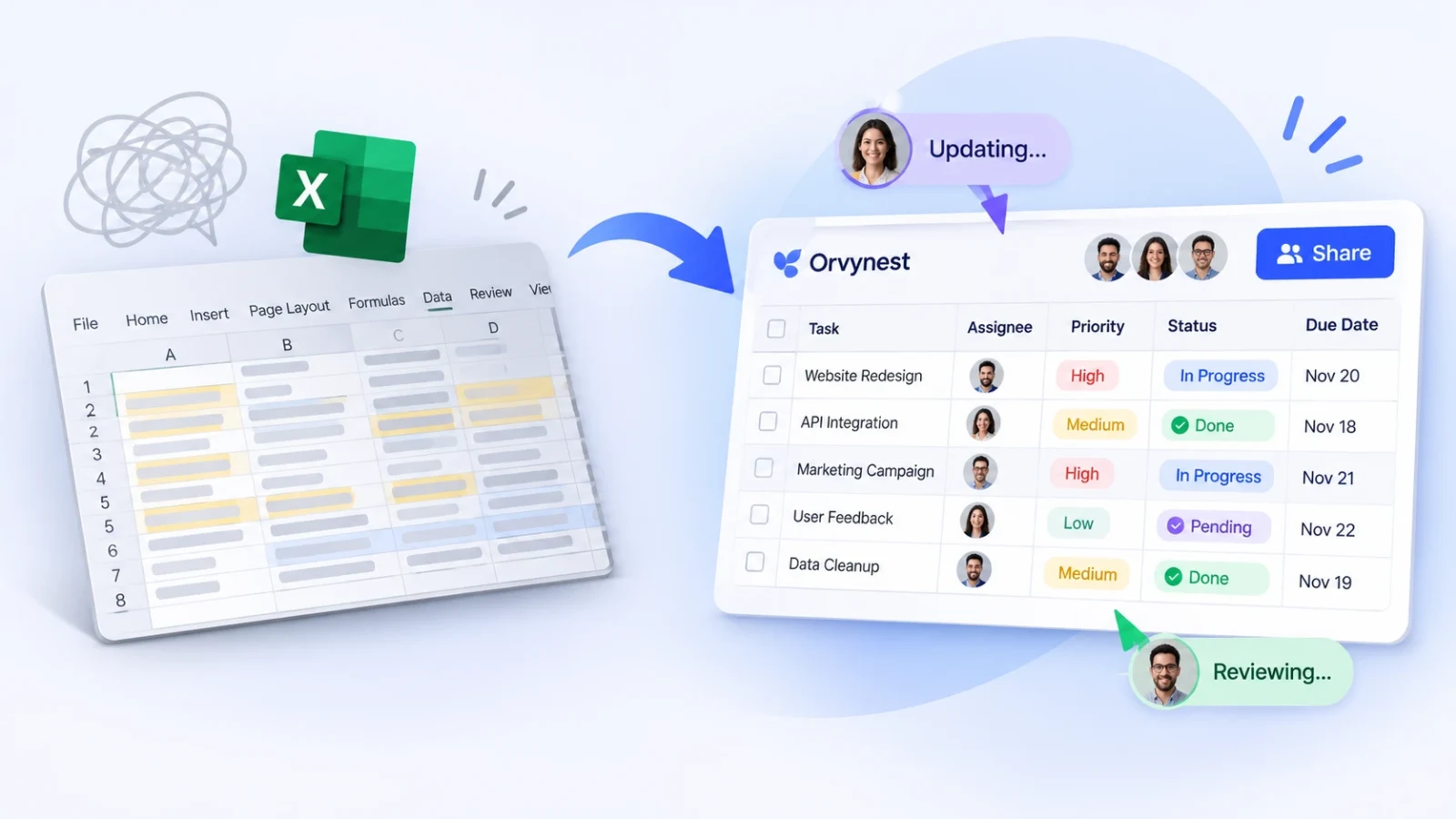
Almost every team starts in the same place: one Excel file, one person who updates it, and a growing pile of copies sent by email. It works for a while. Then someone edits an old version, a colleague can’t find the latest file, and nobody is sure which numbers are right.
The fix is not to abandon your spreadsheet. It is to move it into a shared workspace where the data lives in one place and everyone works on it together. This guide shows how to turn an Excel spreadsheet into a team workspace in about ten minutes, and how to avoid the mistakes that make migrations painful.
Why one Excel file stops working for a team
Excel is excellent for personal analysis. The trouble starts when a single file becomes the system your whole team runs on:
- Version confusion. Every email attachment is a new copy, and the copies drift apart.
- Waiting for each other. Only one person can safely edit at a time, or edits get overwritten.
- No control over access. Anyone with the file sees every sheet and every row.
- Manual sharing. Sending a customer their status means exporting, trimming and attaching a file by hand.
- No overview. Totals and reports have to be rebuilt every time someone asks.
If two or more of these sound familiar, a shared table workspace will save you hours every week.
Step 0: Clean your spreadsheet before you import it
A clean file imports cleanly. Spend five minutes on these basics before you upload:
- Keep one header row at the top, with a unique name for every column.
- Make sure each row is one record (one job, one customer, one order).
- Remove merged cells, blank rows and decorative totals from the middle of the data.
- Use one format per column: all dates as dates, all amounts as numbers.
- Split combined values (for example “John - 555 0100”) into separate columns.
- Delete old columns nobody uses. Fewer columns mean a faster, clearer table.
Step-by-step: from Excel file to shared workspace
Step 1: Import your Excel file
Create a new table in Orvynest and upload your .xlsx file. Your rows and columns become an editable table with an Excel-style grid, so copy and paste, duplicate shortcuts and search and replace work the way you expect.
Step 2: Check your column types
Review each column and choose the type that fits the data, such as text, numbers or dates. The right types make sorting, filtering and reporting reliable. You can add as many custom columns as you need, so you are never forced into a fixed template.
Step 3: Bring over your formulas
If your sheet calculates totals or differences, recreate them with inline formulas such as =C1+D1 directly in the table. Keep formulas simple and readable, and give calculated results their own column.
Step 4: Create views and filters
Not everyone needs to see everything. Save filtered views like “My open tasks” or “Due this week” so each teammate opens the table and lands on exactly what matters to them.
Step 5: Invite your team and set permissions
Add your teammates and decide who can access which table. Orvynest supports permissions per user, so a sales colleague can work in the Deals table without opening the finance table. Once your team is inside, you can edit the same table at the same time and see who else is working in it.
Step 6: Retire the old file
The most common reason migrations fail is that the old file stays alive. Announce a date, move the original into an archive folder and tell everyone that the table is now the single source of truth.
Make the table work harder than the spreadsheet
Once your data is in a shared table, you can do things a static file never allowed:
- Color rules. Highlight overdue dates in red or completed items in green automatically with appearance rules.
- Dashboards. Turn counts and filtered results into widgets so you see the status at a glance.
- Pivot-style reports. Summarize by person, month or status without building a pivot table by hand.
- Public links. Share selected rows with a customer instead of sending the whole file. Our guide on sharing spreadsheet data with clients securely explains how.
Common mistakes to avoid
- Importing a messy sheet and promising to fix it later.
- Keeping two “master” versions alive at the same time.
- Giving everyone access to everything by default.
- Copying every old column even though nobody uses it.
- Skipping the team introduction. Ten minutes spent showing the saved views prevents weeks of questions.
Frequently asked questions
Can I keep using Excel after I import my file?
Yes. Many teams keep Excel for personal analysis and use the shared table for day-to-day work. The key is to decide which one is the source of truth, and to stick to it.
Do I need technical skills?
No. Orvynest is a no-code platform. If you can work in a spreadsheet, you can build and manage a table.
Can several people edit at the same time?
Yes. Teammates can work in the same table in real time, and you can see who else is in it. Read more in our guide to real-time spreadsheet collaboration for teams.
Next steps
Ready to try it? Upload your Excel file to Orvynest and turn it into a team workspace in minutes. Not sure it is time to move yet? Read 7 signs you have outgrown Excel and see how many apply to your team.